NEW HIRE ONBOARDING · VERIFIED JUNE 2026
Onboarding, Email & Signature Guide
Coast2Coast Mortgage • AI Lending • Glass Mortgage Group • Clarity Mortgage • Hello My Mortgage
For Loan Officers and Loan Partners / Processors
Updated June 2026 — every Outlook, Windows, Mac, iPhone, and Android instruction in this guide has been re-verified against Microsoft's and Apple's current documentation.
Welcome to our Coast2Coast Mortgage family of brands!
The following is a guide with instructions to help you get set up quickly. If you need any additional assistance getting set up, please send an email to support@coast2coastml.com and we will be more than happy to help!
Your new email address:
If you joined… | Your email address looks like… |
Coast2Coast Mortgage | you@coast2coastml.com |
AI Lending | you@ailending.com |
Glass Mortgage Group | you@glassmtg.com |
Clarity Mortgage | you@glassmtg.com |
Hello My Mortgage | you@HelloMyMortgage.com |
Clarity Mortgage operates under Glass Mortgage Group, so Clarity team members use @glassmtg.com email addresses.
CONTENTS
- Part 1 — Get Signed In: Your New Email Account
- 1.1 Set Up Your New Email Account (First Sign-In)
- 1.2 Create Web Browser Bookmarks (Google Chrome / Microsoft Edge)
- 1.3 Loan Officers Only — Correspondent / Non-Del Loans
- Part 2 — Install Your Apps
- 2.1 Microsoft 365 + Outlook on Windows (10/11)
- 2.2 Which Outlook Do I Have? (Classic vs. New)
- 2.3 Microsoft 365 + Outlook on Mac
- 2.4 Microsoft Teams on Windows & Mac
- 2.5 Install Outlook & Teams on Your Phone (iPhone / Android)
- Part 3 — Set Up Your Work Email on Your Phone
- 3.1 Outlook App on iPhone
- 3.2 Outlook App on Android
- 3.3 iPhone Built-In Mail App (Apple Mail)
- Part 4 — Your Email Signature
- 4.1 Signature Templates by Brand & Role
- 4.2 Example — A Completed Signature
- 4.3 Before You Begin
- 4.4 Add Your Signature — Outlook Classic (Windows)
- 4.5 Add Your Signature — New Outlook (Windows) & Outlook on the Web
- 4.6 Add Your Signature — Outlook for Mac
- 4.7 Add Your Signature — Outlook App on iPhone & Android
- 4.8 Add Your Signature — iPhone Built-In Mail App
- 4.9 Test Your Signature (Send It to Yourself!) — Very Important!
- 4.10 Troubleshooting — Quick Fixes
- Part 5 — Account Setups
- 5.1 CIC Credit | Hard Pull & Soft Pull Accounts (Loan Officers)
- 5.2 C2C Payroll Systems & C2C Blaze Commission System (If Applicable)
- 5.3 Fannie Mae & Freddie Mac Accounts (Loan Officers)
- 5.4 ARIVE (LOS)
- 5.5 Lender Account Setups (Loan Officers)
- Part 6 — Marketing Materials & CRM (Loan Officers)
- 6.1 Approved Marketing Material Disclosure Verbiage
- 6.2 CRM Options — Leaf360
- Part 7 — Join the Conversation! Microsoft Teams & Facebook
- Part 8 — Coast2Coast Support Team
- Appendix A — 3rd-Party Processing Companies
- Appendix B — Companion Files
- Welcome Aboard!
Part 1 — Get Signed In: Your New Email Account
1.1 Set Up Your New Email Account (First Sign-In)
Tip before you start: install the Microsoft Authenticator app on your phone first — you will need it during sign-in:
- For Apple: Microsoft Authenticator — Apple App Store Link
- For Android: Microsoft Authenticator — Google Play Store Link
1Head to https://www.office.com. (Don't be surprised if the page calls itself Microsoft 365 Copilot and the address changes to m365.cloud.microsoft — Microsoft rebranded the portal. It is the same place, and the steps are the same.)
2Click on the sign in icon (avatar with a +) at the top-right corner.
3Enter your new email address from above and click on the blue Next button.
4Enter your temporary password (please see your personal doc for the password) and click on the blue Sign in button.
5Follow the prompts to set up Multi-Factor Authentication using the Microsoft Authenticator app you installed above.
6Once the Microsoft Authenticator has been set up, you will now create a new password for your Microsoft 365 account. Enter the temporary password (please see your personal doc for the password) as the current password and then create a new password.
7Once created, you can choose to stay signed in to the new account.
1.2 Create Web Browser Bookmarks (Google Chrome / Microsoft Edge)
Bookmark the sites below so everything is one click away. Rows marked LO in the right-hand column mainly apply to Loan Officers.
ARIVE: | ||
C2C Lender List: | ||
C2C Licensed States Map: | ||
C2C Blaze Commission System: | ||
Payroll | W-2 | CoAdvantage Quantum: | ||
Payroll | 1099 | iSolved | Sullivan Group: | ||
Microsoft Outlook (Web): | ||
Microsoft Teams (Web): | ||
CIC Credit: | LO | |
C2C Facebook Group: | LO | |
UWM: | LO | |
UWM | Brand360: | LO |
1.3 Loan Officers Only — Correspondent / Non-Del Loans
- CLICK HERE for the most recent Correspondent/Non-Del Training PDF Guide
- Email Marcie Culley (marcie@coast2coastml.com) or Bob Bagley (bob@coast2coastml.com) to set up a live training
Part 2 — Install Your Apps
2.1 Microsoft 365 + Outlook on Windows (10/11)
1Head to https://www.office.com and sign in at the top-right (if not already signed in).
2CLICK HERE for the downloads page — or click Install apps near the upper-right of the portal home page, then Microsoft 365 apps.
3Once downloaded, run OfficeSetup.exe to complete the setup (click Yes if Windows asks for permission, and wait for the “You're all set!” message).
4Once Microsoft 365 has been installed, open Microsoft Outlook (Classic).
5Follow the prompts to add your new email account — Outlook finds everything automatically; you just sign in with your new email address and password.
6If already using Outlook, click File and Add Account and follow the prompts.
7Pin Microsoft Outlook to the Windows taskbar.
2.2 Which Outlook Do I Have? (Classic vs. New)
- Look at the top-right corner of the Outlook window: if you see a Settings gear icon, you are in new Outlook. If you see a classic File menu with the full ribbon, you are in Outlook (classic).
- The Start menu lists them separately as Outlook (new) and Outlook (classic).
- To switch from new Outlook back to classic: turn off the New Outlook toggle in the top-right corner (or use the Help tab → Go to classic Outlook).
- To try new Outlook from classic: flip the Try the new Outlook toggle in the top-right corner.
2.3 Microsoft 365 + Outlook on Mac
Option 1 — Microsoft 365 portal (installs the full Office suite):
1Head to https://www.office.com and sign in at the top-right (if not already signed in).
2CLICK HERE for the downloads page and click the install button (Install apps → Microsoft 365 apps).
3Once downloaded, run the .pkg installer file to complete the setup.
4Once Microsoft 365 has been installed, open Microsoft Outlook.
5Follow the prompts to add your new email account (type your work email, click Continue, and sign in with your password).
6If already using Outlook, go to Outlook menu → Settings… → Accounts → + → Add an Account.
7Option-Click/Right-Click Microsoft Outlook in the dock at the bottom of the screen and select Options and Keep in Dock to keep the icon in the dock when closed.
Option 2 — Mac App Store (Outlook only, smaller download):
1Open the App Store on the Mac and search for Microsoft Outlook (by Microsoft Corporation — requires macOS 14 or later).
2Click Get, then Install.
3Open Outlook and sign in with your new work email address.
2.4 Microsoft Teams on Windows & Mac
Windows 10/11:
1CLICK HERE to be taken to the Microsoft Teams download page and click on the Download Microsoft Teams button.
2Once downloaded, run the setup file from wherever it was downloaded on your computer and complete the setup process.
3Once installed, open Microsoft Teams.
4Complete the setup process by signing in with your new email account.
5Pin Microsoft Teams to the Windows taskbar.
Apple macOS:
1CLICK HERE to be taken to the Microsoft Teams download page and click on the Download Microsoft Teams button.
2Once downloaded, run the setup file and complete the setup process.
3Once installed, open Microsoft Teams and sign in with your new email account.
4Option-Click/Right-Click the Microsoft Teams icon on the dock and select Options and then Keep in Dock.
2.5 Install Outlook & Teams on Your Phone (iPhone / Android)
iPhone (Apple iOS):
1CLICK HERE for Microsoft Outlook in the Apple App Store (or search the App Store for “Microsoft Outlook” — requires iOS 18 or later, roughly iPhone XR/XS and newer).
2CLICK HERE for Microsoft Teams in the Apple App Store.
3Once installed, open each app and follow the prompts to sign in with your new email account (see Part 3).
Android:
1CLICK HERE for Microsoft Outlook in the Google Play Store (requires Android 10 or later).
2CLICK HERE for Microsoft Teams in the Google Play Store.
3Once installed, open each app and follow the prompts to sign in with your new email account (see Part 3).
Part 3 — Set Up Your Work Email on Your Phone
You have two great options on a phone: the Outlook app (recommended by Microsoft, and what most of our team uses) or, on iPhone, the built-in Apple Mail app. Pick one — or set up both.
3.1 Outlook App on iPhone
If Outlook is brand new on your phone (no account yet):
1Open the Outlook app.
2Tap Add Account (do NOT tap “Create New Account” — your work account already exists).
3Enter your work email address and tap Add Account / Continue.
4The Microsoft sign-in page appears — enter your password.
5Approve the Multi-Factor Authentication prompt in Microsoft Authenticator if asked.
6If Outlook offers to add other accounts it found on your phone, tap Skip / Maybe Later unless you want them.
If you already use Outlook for another account:
1Tap your profile icon / initials in the top-left corner.
2Tap the Settings gear at the bottom-left of the panel.
3Tap Add Mail Account (or Account → Add Account), then enter your work email and sign in as above.
3.2 Outlook App on Android
1Open the Outlook app.
2Tap Add Account (first run) — or, if you already use Outlook, open the Menu (profile icon, top-left), tap Settings (gear), then Add Account → Add an email account.
3Enter your work email address, then sign in on the Microsoft page with your password.
4Approve the Multi-Factor Authentication prompt if asked.
3.3 iPhone Built-In Mail App (Apple Mail)
Use these steps to add your work email to the iPhone's standard Mail app. They match iOS 18 and iOS 26 (the current version).
1Open Settings.
2Tap Apps (scroll to the bottom of Settings), then tap Mail.
3Tap Mail Accounts, then tap Add Account.
4Tap Microsoft Exchange (this is the correct choice for our Microsoft 365 work email).
5Enter your work email address and a description like “Work”, then tap Next.
6Tap Sign In — NOT “Configure Manually”. (“Configure Manually” will always fail for our accounts.)
7The Microsoft sign-in page appears — enter your password, and approve the Microsoft Authenticator prompt if asked.
8If a permissions screen appears, tap Accept.
9Choose what to sync — our recommendation: Mail ON, Calendars ON, Contacts ON (so coworkers' and clients' names show on caller ID), Reminders and Notes OFF. Then tap Save.
Helpful to know:
- Older iPhones (iOS 17): the path is Settings → Mail → Accounts → Add Account — everything from step 4 onward is the same.
- Only a week of email showing? That is the “Mail Days to Sync” setting. Go to Settings → Apps → Mail → Mail Accounts → [your work account] → Mail Days to Sync and choose 1 Month (older mail is still on the server — search will find it).
- Adding the account away from home or the office? iPhone's Stolen Device Protection may block account changes in unfamiliar locations. Easiest fix: add the account at home or at the office.
- Inbox auto-sorting: newer iPhones sort mail into Primary / Transactions / Updates / Promotions. If client emails seem to “disappear”, tap the view button at the top of the inbox and switch to List View.
Part 4 — Your Email Signature
A polished signature on every email is part of the brand. This part gives you the official signature templates, then walks you through adding yours on every device — Windows, Mac, iPhone, and Android.
Filling in the placeholders — read this before you copy a template:
- Replace First & Last Name, (000) 000-0000, and email@… / name@… with your own information.
- Replace every 000000 with your personal NMLS number — including inside the “CLICK HERE to Apply Now” link, which should point to coast2coastmortgage.my1003app.com/YOUR-NMLS/register.
- The “CLICK HERE to Order Credit” link is a placeholder. Replace it with your personal SmartPay link, found at the bottom of your CIC Credit Welcome email (see section 5.1). The completed example in 4.2 shows what this looks like. (If Applicable)
- Link “Visit My Website” to your personal page (for example, www.coast2coastmortgage.com/first-last).
- If you do not hold an individual NMLS number, simply delete the NMLS line.
4.1 Signature Templates by Brand & Role
Coast2Coast Mortgage — Loan Officer
Desktop Email Signature:
The pictures below are previews of each desktop signature. To set up your own, copy the real signature from the Word template attached to this article (C2C Teams Signatures.docx) — don’t retype it from the picture.
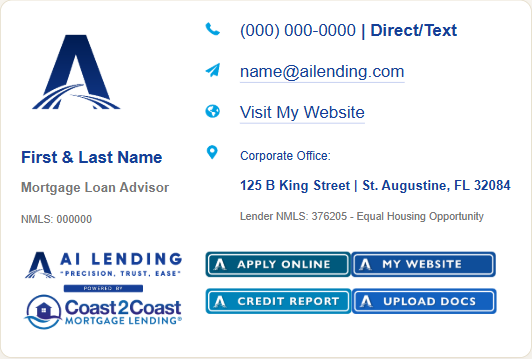
Mobile Email Signature (text version for phones):
First & Last Name
Mortgage Loan Advisor | NMLS: 000000
(000) 000-0000 | Direct/Text
CLICK HERE to Apply Now
CLICK HERE to Order Credit
Coast2Coast Mortgage Lending
125 B King Street | St. Augustine, FL 32084
Lender NMLS: 376205 - Equal Housing Lender
Coast2Coast Mortgage — Loan Partner / Processor (Non-Licensed)
Desktop Email Signature:
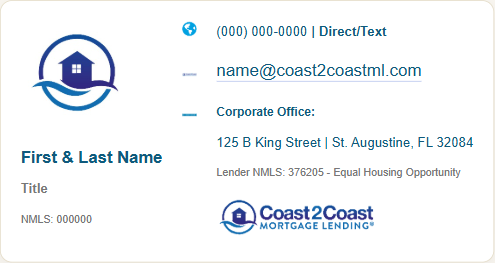
Mobile Email Signature (text version for phones):
First & Last Name
Title | NMLS: 000000
(000) 000-0000 | Direct/Text
Coast2Coast Mortgage Lending
125 B King Street | St. Augustine, FL 32084
Lender NMLS: 376205 - Equal Housing Lender
AI Lending — Loan Officer
Desktop Email Signature:
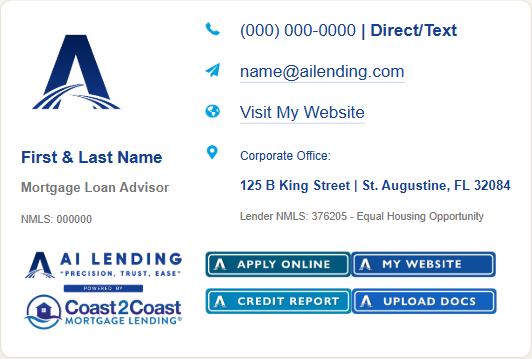
Mobile Email Signature (text version for phones):
First & Last Name
Mortgage Loan Advisor | NMLS: 000000
(000) 000-0000 | Direct/Text
CLICK HERE to Apply Now
CLICK HERE to Order Credit
AI Lending (powered by Coast2Coast Mortgage)
125 B King Street | St. Augustine, FL 32084
Lender NMLS: 376205 - Equal Housing Lender
AI Lending — Loan Partner / Processor (Non-Licensed)
Desktop Email Signature:
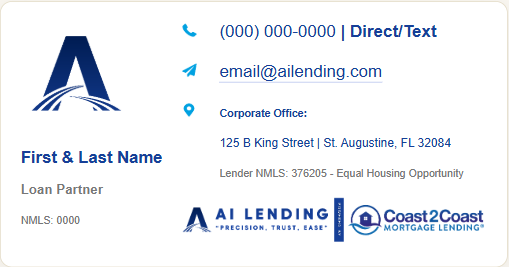
First & Last Name
Loan Partner
(000) 000-0000 | Direct/Text
AI Lending (powered by Coast2Coast Mortgage)
125 B King Street | St. Augustine, FL 32084
Lender NMLS: 376205 - Equal Housing Lender
Glass Mortgage Group — Loan Officer
Desktop Email Signature:
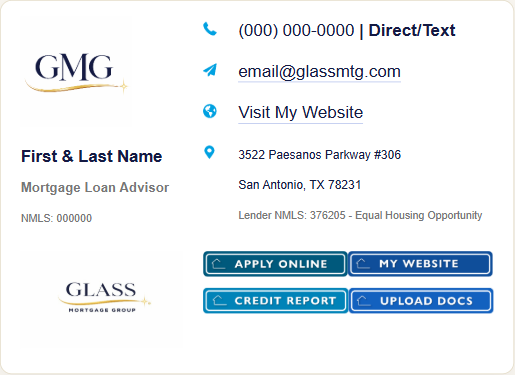
Mobile Email Signature (text version for phones) + brand colors:
First & Last Name
Mortgage Loan Advisor | NMLS: 000000
(000) 000-0000 | Direct/Text
CLICK HERE to Apply Now
CLICK HERE to Order Credit
Glass Mortgage Group
3522 Paesanos Parkway #306 | San Antonio, TX 78231
Lender NMLS: 376205 - Equal Housing Lender
Glass Mortgage Group Color Scheme
Gold: R: 226 G: 184 B: 74 | HEX: #E2B84A
Blue: R: 20 G: 26 B: 67 | HEX: #141A43
Clarity Mortgage — Loan Officer
Clarity Mortgage operates under Glass Mortgage Group — your signature and email address intentionally use Glass branding and the Glass color scheme.
Desktop Email Signature:
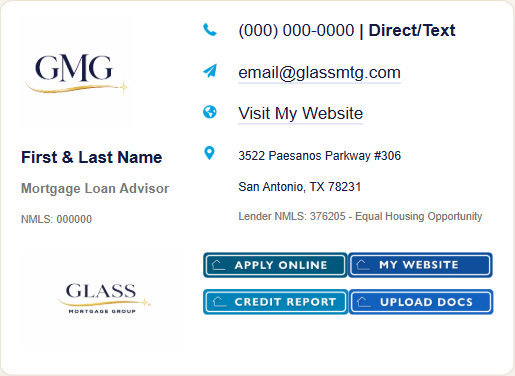
Mobile Email Signature (text version for phones) + brand colors:
First & Last Name
Mortgage Loan Advisor | NMLS: 000000
(000) 000-0000 | Direct/Text
CLICK HERE to Apply Now
CLICK HERE to Order Credit
Glass Mortgage Group
3522 Paesanos Parkway #306 | San Antonio, TX 78231
Lender NMLS: 376205 - Equal Housing Lender
Glass Mortgage Group Color Scheme
Gold: R: 226 G: 184 B: 74 | HEX: #E2B84A
Blue: R: 20 G: 26 B: 67 | HEX: #141A43
Hello My Mortgage — Loan Officer
Desktop Email Signature:
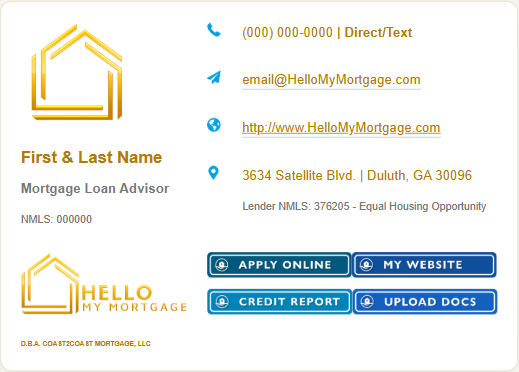
Mobile Email Signature (text version for phones) + brand colors:
First & Last Name
Mortgage Loan Advisor | NMLS: 000000
(000) 000-0000 | Direct/Text
CLICK HERE to Apply Now
CLICK HERE to Order Credit
Hello My Mortgage
Powered by Coast2Coast Mortgage
3634 Satellite Blvd. | Duluth, GA 30096
Lender NMLS: 376205 - Equal Housing Lender
Hello My Mortgage Color Scheme:
Color 1: R: 255 G: 255 B: 135 | HEX: #FFFF87
Color 2: R: 255 G: 221 B: 87 | HEX: #FFDD57
Color 3: R: 223 G: 157 B: 4 | HEX: #DF9D04
Color 4: R: 195 G: 119 B: 3 | HEX: #C37703
4.2 Example — A Completed Signature
Here is what a finished Loan Officer mobile signature looks like with the placeholders filled in (the name and details below are fictional). The desktop version looks just like your brand's template above, with your own headshot photo in place of the placeholder:
Jordan Smith
Mortgage Loan Advisor | NMLS: 123456
(555) 555-0123 | Direct/Text
jordan.smith@coast2coastml.com
Visit My Website → www.coast2coastmortgage.com/jordan-smith
CLICK HERE to Apply Now → coast2coastmortgage.my1003app.com/123456/register
CLICK HERE to Order Credit → (your personal SmartPay link from your CIC Credit Welcome email)
Coast2Coast Mortgage Lending
125 B King Street | St. Augustine, FL 32084
Lender NMLS: 376205 - Equal Housing Lender
4.3 Before You Begin
The walkthroughs below take you all the way from opening Outlook to seeing your brand-new signature show up perfectly in a test email. You will need two things to get started:
- Your signature file — the master template document C2C Teams Signatures.docx provided with this guide (see Appendix B), or the email you received that contains your finished signature.
- About 10 minutes of uninterrupted time — it really is quick, but Outlook likes to be paid attention to.
4.4 Add Your Signature — Outlook Classic (Windows)
This is the version most folks here use day to day. (Using new Outlook? Jump to 4.5.)
Step 1: Open the Signature Editor in Outlook Classic
Let's get into the right spot first. This is the screen where Outlook stores all of your signatures.
1Open Outlook Classic on your desktop.
2Click File in the very top-left corner (just above the ribbon).
3Click Options at the bottom of the left-hand menu.
4In the window that pops up, click Mail on the left side.
5Scroll a little until you see the Signatures... button — click it.
Step 2: Create Your New Signature
Now we'll give your signature a name so Outlook can keep it organized.
1In the Signatures and Stationery window, click New.
2Type a name for the signature — something simple like Main Signature works perfectly. Click OK.
3You will see a blank editing box appear in the bottom half of the window. This is where your signature will live.
Step 3: Bring Your Signature In
You have two easy options here. Use whichever feels more comfortable.
Option A: From the Word Document
1Open the Word document with your signature (your brand's template from section 4.1, filled in with your information).
2Click anywhere inside the signature, then press Ctrl + A to select everything.
3Press Ctrl + C to copy.
4Go back to Outlook's signature editing box, click inside the blank area, and press Ctrl + V to paste.
5Your signature — photos, logos, links, the whole thing — should now appear in the box.
Option B: From the Email You Received
1Open the email containing your signature.
2Click anywhere inside the signature area, then press Ctrl + A to select everything in the body.
3Press Ctrl + C to copy.
4Go to Outlook's signature editing box, click inside the blank area, and press Ctrl + V to paste.
Step 4: Save It and Make It Your Default
We want this signature to show up automatically on every new email and every reply — no extra clicks needed.
1Look at the top-right of the Signatures window for the Choose default signature section.
2In the E-mail account drop-down, make sure your work email address is selected.
3Under New messages, select the signature you just created (Main Signature).
4Under Replies/forwards, also select your new signature — this way it shows up every time, not just on brand-new emails.
5Click OK at the bottom to save.
6Click OK once more to close out of Outlook Options entirely.
Now jump to 4.9 — Test Your Signature. (Seriously — don't skip it!)
4.5 Add Your Signature — New Outlook (Windows) & Outlook on the Web
New Outlook and Outlook on the web (outlook.office.com) share the same cloud signature — set it up once and it appears in both.
1Click the Settings gear icon in the top-right corner, then choose Accounts → Signatures.
2Click + New signature and give it a simple name like Main Signature.
3Paste your signature into the editing box (copy it from the Word template or from the email you received, exactly like Step 3 in section 4.4).
4If a paste prompt appears, choose Paste anyway to keep the formatting.
5Under Select default signatures, set your new signature for both For New Messages and For Replies/forwards.
6Click Save.
4.6 Add Your Signature — Outlook for Mac
1In the menu bar, click Outlook → Settings… (or press ⌘ ,).
2Under Email, click Signatures.
3Click the + button and give the signature a name.
4Paste your signature into the editor — best source: the email you received containing your finished signature (select it, ⌘ A then ⌘ C, and ⌘ V into the editor). Pasting from Word on a Mac can break the layout.
5If an image is missing, use the Pictures button in the editor toolbar to re-insert it, and ⌘ K to re-add any link.
6Click Save.
7In the Choose default signature section, select your account and set your signature for both New messages and Replies/forwards.
4.7 Add Your Signature — Outlook App on iPhone & Android
Your phone signature is separate from your computer signature — it will not sync either direction, so set it here too. Use your brand's Mobile Email Signature text from section 4.1.
1Tap your profile icon / initials in the top-left, then the Settings gear.
2Under Mail, tap Signature.
3Delete the default “Get Outlook for iOS” / “Get Outlook for Android” text.
4Type (or paste) your brand's full Mobile signature exactly as shown in section 4.1 — including the website, Apply Now, and Order Credit lines if your role uses them.
5On iPhone, tap the back arrow / Done (it saves automatically). On Android, tap the checkmark at the top-right.
4.8 Add Your Signature — iPhone Built-In Mail App
1Open Settings → Apps → Mail.
2Tap Signature (below Composing).
3Replace “Sent from my iPhone” with your Mobile signature text from section 4.1.
4If you have personal email on the phone too, tap Per Account first so your work signature only goes on work email.
4.9 Test Your Signature (Send It to Yourself!) — Very Important!
Here is the part nobody warns you about: even when your signature looks beautiful in Outlook's preview box, the images sometimes do not actually show up on the recipient's side the very first time you send. Annoying, we know — but the fix is delightfully simple.
1Click New Email at the top-left of Outlook.
2In the To field, type in your own email address.
3Your signature should appear automatically. If it does not, click the Signature button on the ribbon and choose your signature manually.
4In the subject line, type something like Signature Test.
5Click Send.
6Open the email when it arrives in your inbox. Check that every image, logo, and link is showing correctly.
One final real-world test:
Once the test email to yourself looks good, send one more to a friend or coworker. Ask them to confirm:
- All photos and logos appear (not red X boxes or blank squares).
- Phone numbers, email, and links are clickable.
- Spacing looks clean and nothing is overlapping.
If they confirm everything looks good — congratulations, you are officially signature-ready!
4.10 Troubleshooting — Quick Fixes
If something looks off, ninety percent of the time one of these tips will solve it.
Images are showing as red X's or blank boxes
- Reopen the Signatures editor, delete the signature entirely, and redo it — sometimes Outlook saves an incomplete copy and you just need a clean slate.
- Make sure you copy from the original Word document or the email exactly as it was sent. Re-saving the Word file or converting it to PDF first can strip the images.
- Send the test email to yourself again. The first send-to-self trick usually fixes lingering image issues.
Signature shows on new emails but not replies
- Head back to the defaults step. Under Replies/forwards, make sure your signature is selected — not (none).
Signature looks squished or the fonts are wrong
- This almost always means the signature was pasted with the wrong format. Delete it, then paste again using Ctrl + V (not the right-click “Paste as Plain Text” option — we want the formatting to come along).
- If you accidentally used Paste as Plain Text, you will lose images and styling. Just start fresh and you will be back on track.
I don't see “Signatures...” when I click File > Options > Mail
- Make sure you are in Outlook Classic, not the new Outlook. Check the top-right of Outlook — if you see a toggle that says New Outlook, slide it off to switch back to Classic (or use section 4.5's steps instead).
- If you do not see the toggle at all, you are already on Classic.
I pasted the signature but the editing box is still empty
- Click directly inside the signature editing box before pasting. Outlook will not paste into the wrong field, but it also won't warn you — it just quietly does nothing.
- Try copying the signature again from the source, then paste once more.
My logo disappears when pasting into new Outlook or Outlook on the web
- Paste the text, then use the Insert pictures inline toolbar button to add the logo back (see 4.5).
My signature vanished after switching between Classic and New Outlook
- Nothing is lost — the two versions simply keep separate signature lists. Set the signature up again in the version you are using.
The “Get Outlook” line keeps coming back on my phone
- You probably edited the signature on the wrong account. In the Outlook app, turn on Per Account Signature and edit the signature under your work account (see 4.7).
Part 5 — Account Setups
5.1 CIC Credit | Hard Pull & Soft Pull Accounts (Loan Officers)
1You will receive a “New User” email from CIC Credit containing a username (likely won't include “.spq” in the username). Keep note of this username.
2In your list of emails either directly before or after the “new user” email, you should see an email to set a password. Click the link to head to the password setup.
3Click the button at the top to generate the 4-digit setup PIN (will be received by text).
4Enter the PIN and then check the box to register the computer on the network and press the button to continue.
5Follow the instructions to set your new password.
6Once set, click the link to head to the login page and enter the username from the “New User” email along with your newly-created password.
7Fill out the entire form — verify your current address, phone number, email address (you can change to your work email if set up using personal), credit card billing address, and credit card information, and complete the agreement portion and continue to the account.
8Follow the same exact instructions as above to set up your soft pull account using the other “New User” email from CIC Credit — this time, the “spq” is likely at the end of the username.
5.2 C2C Payroll Systems & C2C Blaze Commission System (If Applicable)
- For Payroll, you will be set up with either a CoAdvantage Quantum account (if W-2) or a Sullivan Group iSolved account (if 1099).
- You will also be set up with a Blaze Commission System account.
- Open the invite email for each and follow the included instructions to set up your account.
5.3 Fannie Mae & Freddie Mac Accounts (Loan Officers)
Fannie and Freddie accounts are no longer generated automatically upon joining C2C. To make running AUS as easy as possible, ARIVE will automatically pull and apply our company credentials.
If you require accounts to be set up for another purpose, please send an email to support@coast2coastml.com with your request and we'll address it ASAP.
5.4 ARIVE (LOS)
https://coast2coast.myarive.com
1Open the ARIVE invite email and click on the button to accept the invitation.
2Set up a new password for the account and complete the Multi-Factor Authentication setup. You can use the default Authenticator option or switch to SMS (Text).
3Back up the ARIVE Recovery Key (Copy/Paste into an email or Notepad) and follow the instructions to continue.
4Once completely logged in, click on the face/circle with initials in the top-right corner and click on User Settings from the drop-down.
5Add a photo and complete all applicable fields in Personal Info.
6From the left-hand menu, click Email / SMS Config and scroll to the bottom.
7Click on the Connect button next to Microsoft Office 365 and follow the prompts.
Loan Officers also connect their CIC Credit accounts:
8Click on Credentials from the left-hand bar.
9Click on Credit Account at the top bar then click the + Credit Account button.
10Select CIC Credit from the drop-down menu and enter the hard pull username and new password (username should not include “.spq”).
11Once complete, do the same for your soft pull account (username likely includes “.spq”) and add a check to the checkbox for Soft Pull Account and click Save.
5.5 Lender Account Setups (Loan Officers)
United Wholesale Mortgage (UWM):
Once your email signature is set up in Microsoft Outlook, please send an email (including your new signature) to Marcie Culley at marcie@coast2coastml.com to request a UWM account.
All other lenders:
CLICK HERE to be taken to the Coast2Coast Lender List and reach out to the associated Account Executive (AE) for the Lender with whom you'd like to be set up.
Part 6 — Marketing Materials & CRM (Loan Officers)
6.1 Approved Marketing Material Disclosure Verbiage
If you create your own marketing materials (or have them created for you), the following verbiage can be added to the footer of your materials:
6.2 CRM Options — Leaf360
Coast2Coast Mortgage — Leaf360 / Follow Up Boss CRM:
Leaf360 is a fantastic team whom we've partnered with as they own and maintain a CRM solution incorporating Follow Up Boss CRM as well as an integration solution to automatically send your ARIVE data to the CRM. The total cost for this service is $85/month, but is split between two different services.
To get started, simply send an email to info@leaf360.io with a request for a consultation!
AI Lending — Leaf360 CRM:
Leaf360 is a fantastic team with whom we've partnered as they own and maintain a CRM solution as well as an integration solution to automatically sync your ARIVE data to the CRM.
To get started, simply send an email to info@leaf360.io with a request for a consultation!
Part 7 — Join the Conversation! Microsoft Teams & Facebook
Our C2C Family Lives on Microsoft Teams!
Be part of the conversation in one of the following Teams Groups:
- CLICK HERE for our Coast2Coast General Chat — a great place to ask any general, loan scenario, or compliance/regulatory questions you may have.
- CLICK HERE for our Coast2Coast Pipeline Power Portal — where our weekly business development/lead gen/show & tell meetings occur. A great place to find recordings and ongoing chats about anything we've covered in the meetings OR any systems, services, or marketing ideas you'd like to share with the group!
Join our C2C Loan Officer Facebook Group:
Head to https://group.coast2coastml.com to request access!
Part 8 — Coast2Coast Support Team
Need help? Here are two quick options:
- Head to https://support.coast2coastml.com and ask your question in the search box. As you type, potential solutions will appear underneath the search box. If you find an article matching your query, give it a click!
- You can also send an email to support@coast2coastml.com and ask your question!
Once you send your email, you'll receive 1-2 follow-up emails:
- You'll get an email confirmation that your support ticket has been opened.
- The system will check our internal database of common questions and answers. If we've already addressed your question in an FAQ database, you may receive an instant reply from the AI-powered agent with a short summary answer and links to the full, detailed explanation.
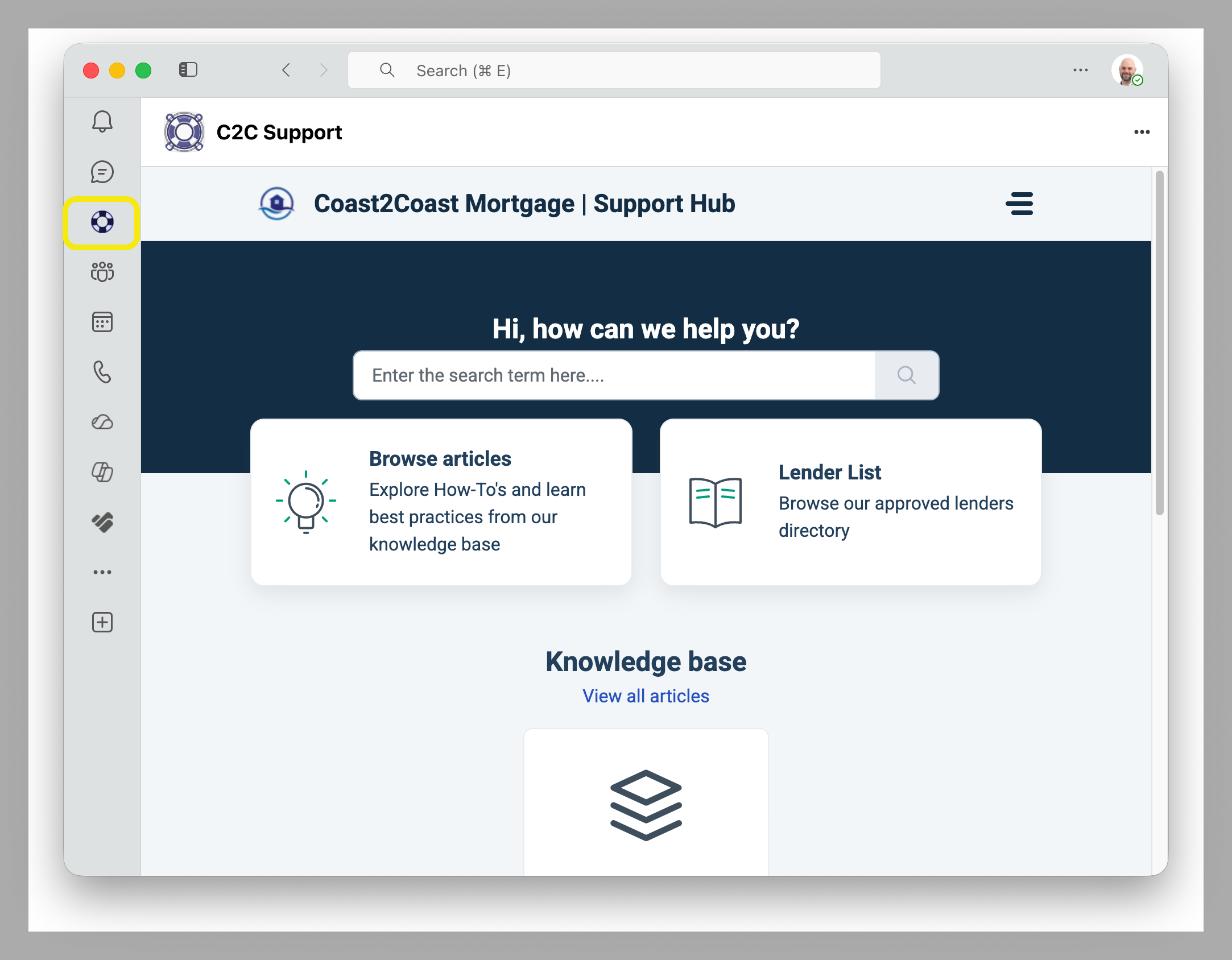
To make life easier, the Coast2Coast Mortgage Support Hub can now also be found right on your navigation bar in Microsoft Teams!
Meet our Coast2Coast Preferred Training Team!
Our knowledgeable team is available if you have any questions about getting your loans into our systems and paired with the right Lender Partner. Please don't forget — if you need any assistance, please send an email to support@coast2coastml.com and we'll take care of your request ASAP!

Appendix A — 3rd-Party Processing Companies
If you plan to work with an outside (3rd-party) processing company, the processing company must be approved first. Have the owner/officer of the processing company complete the 3rd Party Processing Vendor Application (provided alongside this guide as a fillable PDF) and return it as instructed.
The application collects: company information (name, NMLS, DBA, addresses, phone/fax), owner/officer information, experience & logistics (licensed states, years of processing experience, monthly capacity, preferred lenders, referring loan officer, processor count), three mortgage-related business references, and a short legal questionnaire, followed by the owner's signature.
Questions about 3rd-party processing approval? Email support@coast2coastml.com.
Appendix B — Companion Files
- C2C Teams Signatures.docx — the master signature template file (all brands, desktop + mobile versions). Copy your signature from here.
- Template - Coast2Coast Mortgage.docx — official Coast2Coast letterhead template for Word documents.
- 3rd Party Processing Company Onboarding (Fillable).pdf — vendor application for outside processing companies (fillable version).
- 3rd Party Processing Company Onboarding.pdf — same application, print version.
Welcome Aboard!
That is everything you need to get signed in, set up, and looking professional on every email you send. Once you have done it one time, it becomes second nature — and now you also know the little send-to-yourself trick that saves people hours of headache.
WELCOME TO OUR COAST2COAST FAMILY OF BRANDS!
Welcome aboard, and happy emailing!
Was this article helpful?
That’s Great!
Thank you for your feedback
Sorry! We couldn't be helpful
Thank you for your feedback
Feedback sent
We appreciate your effort and will try to fix the article